

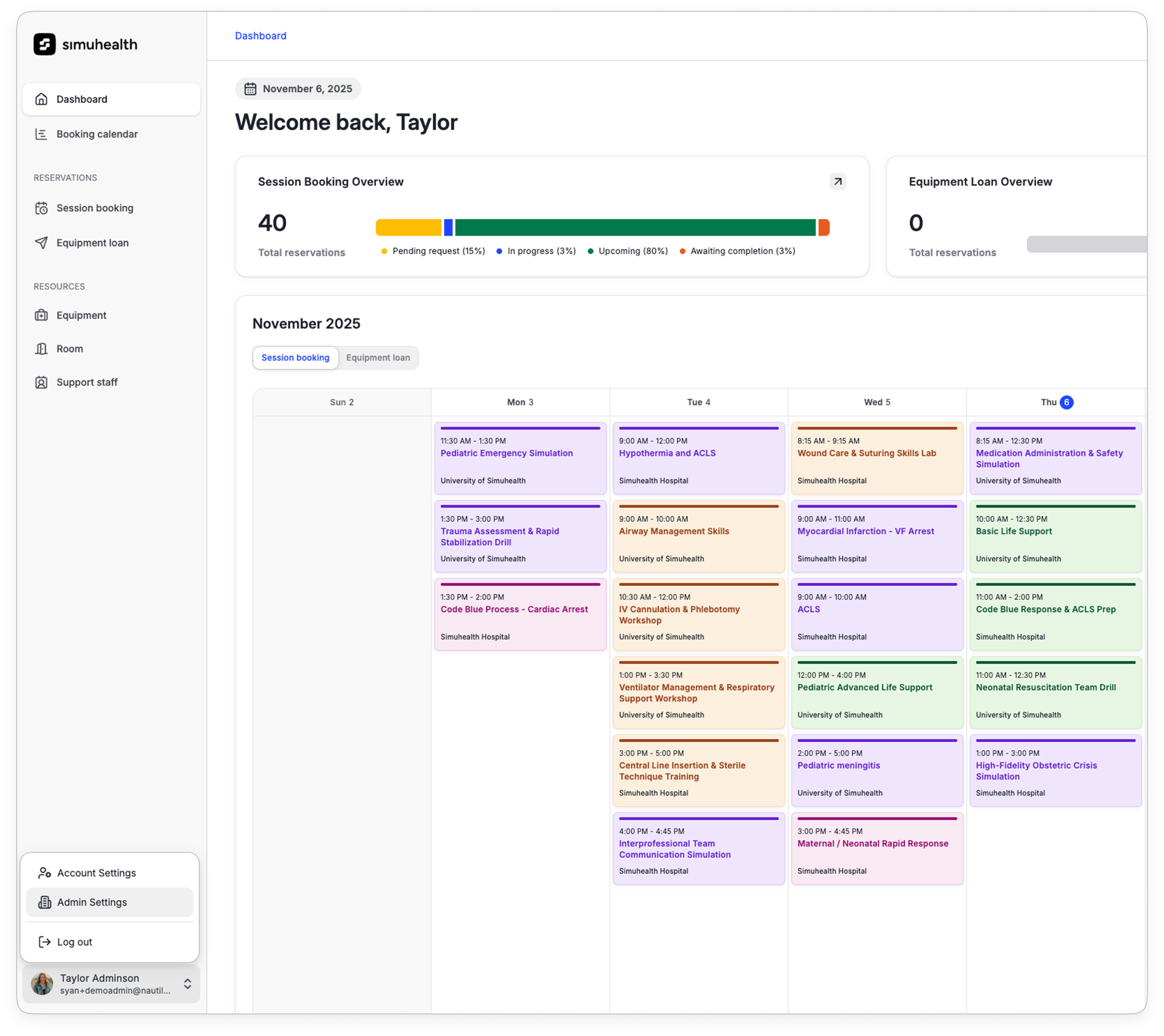
From the dashboard, click your user profile in the bottom-left corner, then select Admin settings from the menu.
First thing you’d need to do as an admin is to tell Simuhealth about your physical locations – whether you’re a single simulation centre or a large health network with multiple facilities.
1. In Admin settings, go to My sites, and click Add site.
2. For each site, enter site name e.g., ACME Hospital and its address, and click Add site.
3. Add one or more sites according to your company size.
Note: Simuhealth uses this information to organize your rooms, equipment, and staff assignments. If you have multiple locations, this ensures bookings and resources are assigned to the correct facility.
Departments help you organize your internal team and collect data about how your staff is structured. You can build a hierarchy with up to three levels of departments to match your organizational structure.
1. In Admin settings, go to My departments/programs, and click Add department.
2. Enter a department name e.g., Administration for your main department.
3. To add a sub level department, hover over the main department you just created and click the + icon to add a sub department.
4. To add a secondary sub department, hover over the sub department you just created and click the + icon to add a secondary sub department.
Note: Organize them in a way that reflects how your company operates. Use one to three levels depending on your workflow, reporting, and data needs.
Now you'll set up the external organizations that will be using your services (universities, hospitals, health networks, etc.).
1. In Admin settings, go to Affiliated organizations, and click Add organization.
2. Enter the organization name e.g., ACME University.
3. Click Add department/program to create departments for that organization.
4. Enter department/program name e.g., Nursing, and click Add to confirm.
Note: Each organization must have at least one department before you can invite users from that organization. Just like adding internal departments in step 2, you can build up to 3 levels of organization hierarchy for your client organization.
Now it’s time to bring your team and clients onto Simuhealth.
Inviting your own team
1. In Admin settings, go to User management, and click Invite new user.
2. Enter the user’s email address.
3. Select their access level: either Admin or Sim Team.
4. Click Send invitation.
Inviting your clients
1. In Admin settings, go to User management, and click Invite new user.
2. Enter the user’s email address.
3. Select their access level: Member.
4. Toggle “Is this user an instructor/facilitator?” if this user is an instructor associated with you organization
Note: This allows you to manage their availability and assign them to support specific sessions. Leave this toggle off if they're a regular participant.
5. Select Site access – choose which sites this member can access and book sessions.
6. Select the Organization this user belongs to.
Note: Choose from the organizations you created in Step 3 (Affiliated organizations).
7. Click Send invitation.