

From the dashboard, click the Create button and Create session and choose a session type.
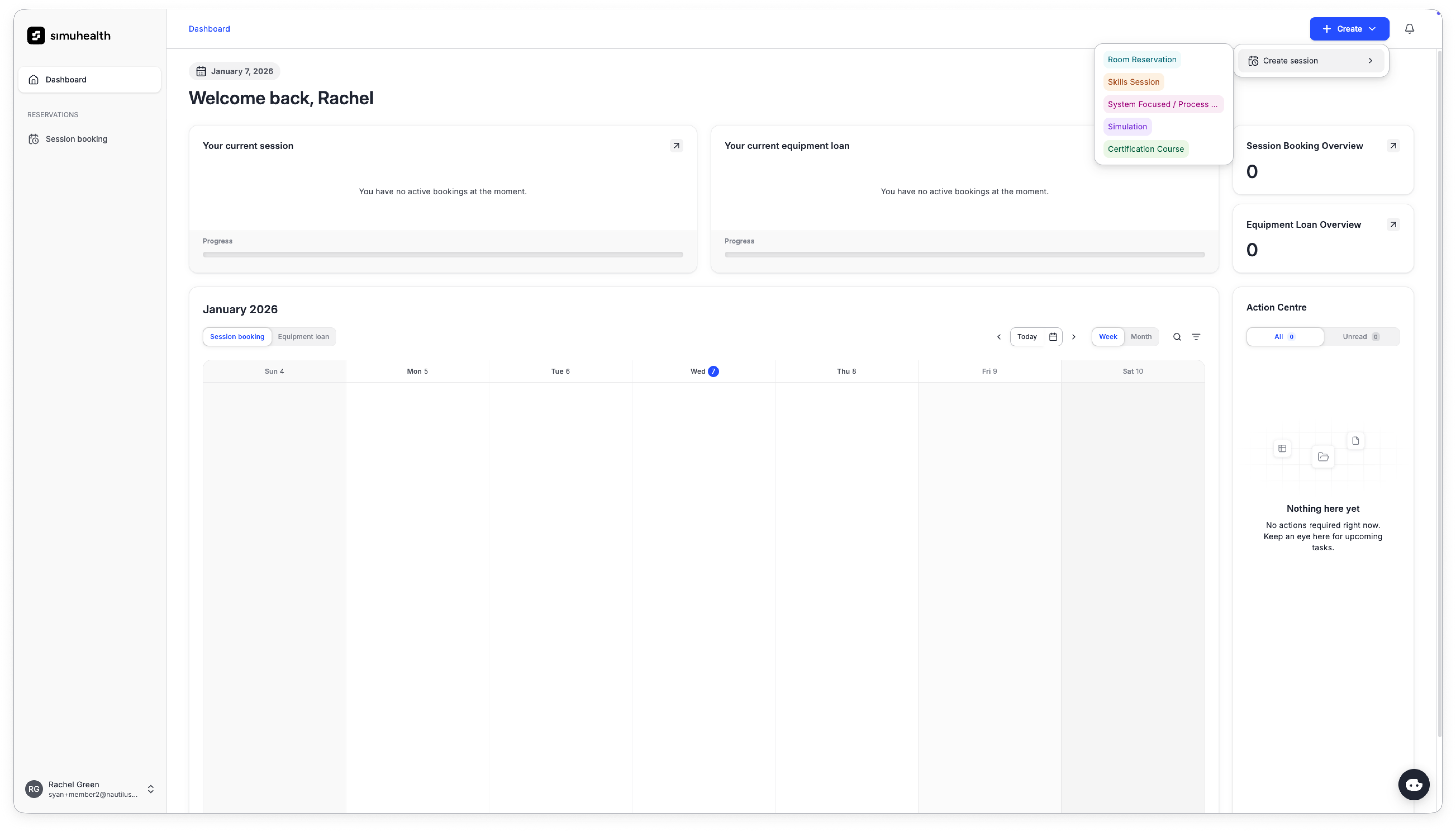
To create a session, start by providing the essential information:
1. Session name: Give your session a clear, descriptive title.
e.g. Code Blue Response: Adult Cardiac Arrest in the ED
2. Session type: This will be prepopulated but you can adjust your selection.
3. Site: Select the site where the session will be conducted
- Note: You may see limited options based on the permissions assigned to your account.
4. Primary organization: This will be prepopulated according to your initial account set up.
- Note: You can add additional organizations if there are more than one organization participating in this session.
5. Department: Select your department.
6. Training focus: Define the primary focus area for this session.
e.g. Code Management/CPR
7. Learning objectives: Provide a clear description of what participants will be able to do or demonstrate by the end of this session.
Click Continue to move on to the next step.
This step allows you to provide additional planning information for your session. You can also enter this information post session as well.
1. Attendee information: Select the attendee type and enter the approximate number of participants you expect for this session.
2. Estimated effort hours: Indicate the total effort hours anticipated for planning, conducting , and briefing this session.
Click Continue or Skip to move to the next step.
Your session can include one or more activities. Each activity must be assigned to a specific room where it will take place.
Example: A typical simulation session might include three activities:
• Activity 1: Pre-brief (Conference Room A)
• Activity 2: Simulation scenario (Simulation Lab 1)
• Activity 3: Debrief (Conference Room A)
1. Add room (required): Select a date and time and a room that the activity will take place.
2. Optional add-ons:
- Instructors: Facilities and leads simulation sessions and debriefing.
- Support staff: Assists with technical aspects of your activity, including equipment setup and troubleshooting.
- Equipment: Add additional equipment and the number you need for your activity.
- Attach files: Attach and upload any supporting document and files.
Click Add activity to populate.
Note: only available equipment, rooms, and resources will show at this time.
Once you add an activity, it will automatically populate on the session timeline. The timeline provides a visual overview of how your session is structured and helps you manage scheduling.
View and modify activity details: Click on the room name to expand each activity to see everything you’ve added, including instructors, support staff, and additional equipment. This expanded view shows you the complete picture of what’s involved in each activity.
Adjusting time allocations:
- Hover and drag the edges to adjust their time allocation.
- Some room and equipment blocks display in lighter shades – these represent prep and clean up time, which can also be adjusted.
Time increment view: On the right, you’ll find time increment options that allow you to view your session duration in different format for easier planning.
Click Add activity button to create additional activities for your session.
Before finalizing your session, take a moment to review all the details you've entered.
1. Review your session information and click Create session.
2. You can enter one or more emails to share the session with your peers.
As a non-admin user, your session request may be sent to admins for review. Once they have reviewed your session, you will receive a notification regarding your booking status—whether it's been approved, or has been rejected.